Second Wind Pro · Sandbox
Built as part of the Second Wind Pro redesign · Back to case study →
SWP Sandbox: A local Figma-like sandbox between Cursor and the deployed site
SWP Sandbox is an internal tool I built to sit between Cursor and the live Second Wind Pro site. It started as a workflow fix during the website redesign, then became its own project: a local library for drafts, frozen versions, and a canvas that lets me preview and mark up the site across breakpoints without redeploying.
Every design check meant a round trip through GitHub and Netlify.
Redesigning the Second Wind Pro website surfaced a second problem I didn't expect to be solving: my own workflow. Every time I wanted to check whether a particular design element held up (athlete cards on mobile, services carousel on iPad), I had to commit to GitHub, deploy to Netlify, and go look. That loop was fine for one check. It was not fine for the number of times I needed to make it.
I didn't need a better deployment pipeline. I needed a middleman.
I'd talked to John Intrater, a Product Designer at Faire, about a similar problem. He'd built an internal playground tool for himself and his coworkers. That conversation stuck with me. Something local, fast, and mine that sat between Cursor and the live site would close the gap better than speeding up deploys.

A Figma / Google Docs–style library for site versions
SWP Sandbox lets me:
- Create, rename, and duplicate draft files pulled straight from the Cursor project, without touching GitHub or Netlify
- Preview any draft across breakpoints (mobile, iPad, desktop) in one place
- Keep a working history of drafts, so I can show progress as a sequence rather than a single “current version”
The homepage is a file library: Playground (the working copy), drafts, and frozen versions, each with a status (working, live, or frozen) and a homepage preview. Hovering a card opens Canvas or Open, depending on whether I need to mark something up or just look at it in the browser.
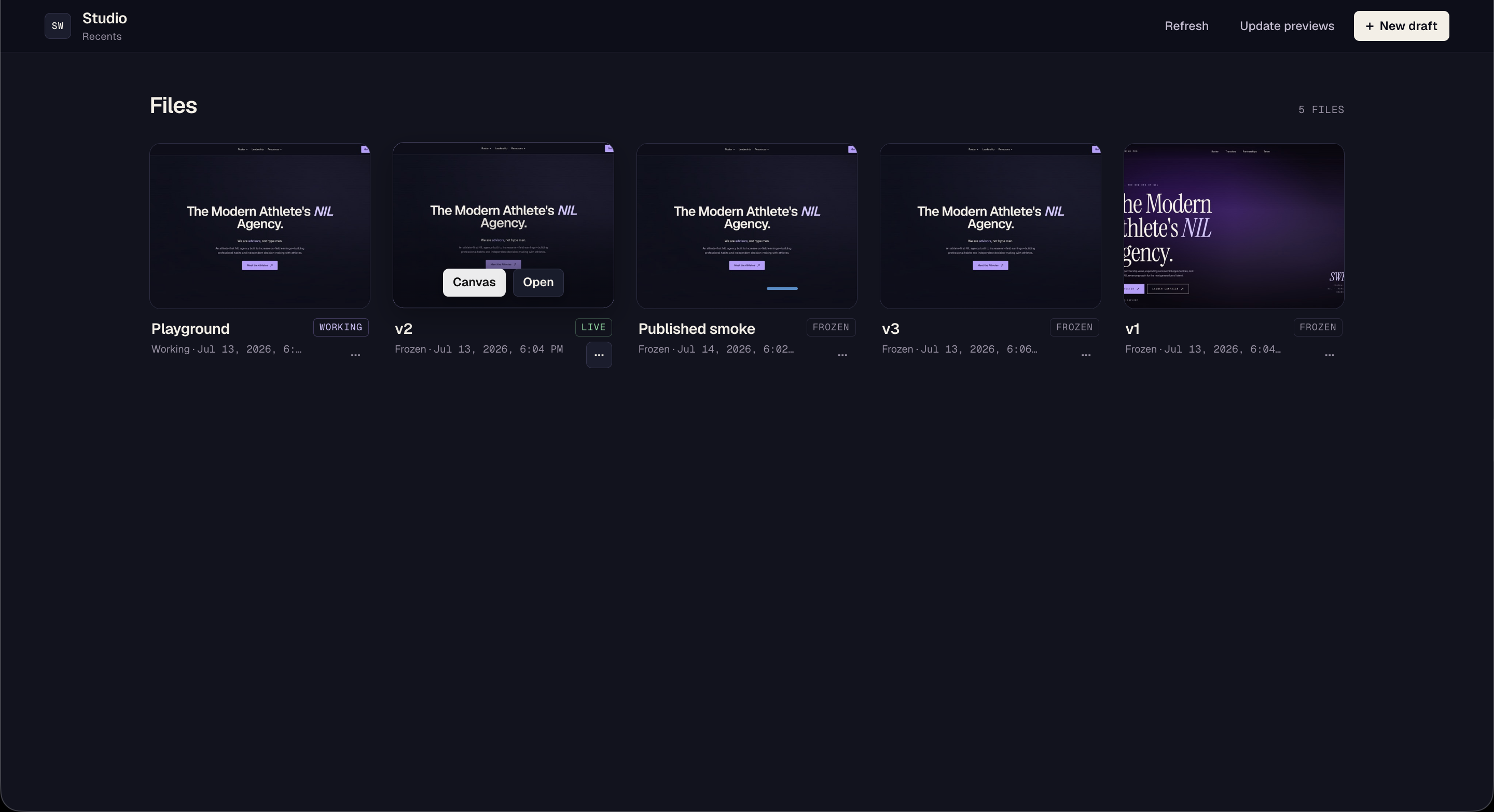
Homepage of SWP Sandbox (Click to enlarge)
Preview, annotate, and mark design changes at real viewport sizes
Canvas is where the sandbox actually replaces the deploy loop. I open a file, pick a viewport, and work on the live preview instead of waiting for Netlify.
Three modes:
- Browse: interact with the live site as a visitor would
- Annotate: yellow pins, boxes, and sketches for feedback
- Design: cyan marks for intended design changes
The left rail holds the viewports I actually design against: Desktop XL (1440×900), Desktop (1280×832), Breakpoint (980×800), Tablet (768×1024), Mobile (390×844), and Mobile SM (555×870). Marks save per viewport, so a mobile note stays on mobile. The preview iframe uses the real pixel width, so CSS media queries kick in correctly instead of scaling a desktop layout down.
From the canvas I can copy notes into Cursor, or open the folder in Cursor and keep going. The point is to stay in the loop between looking and making, without a deploy in the middle.
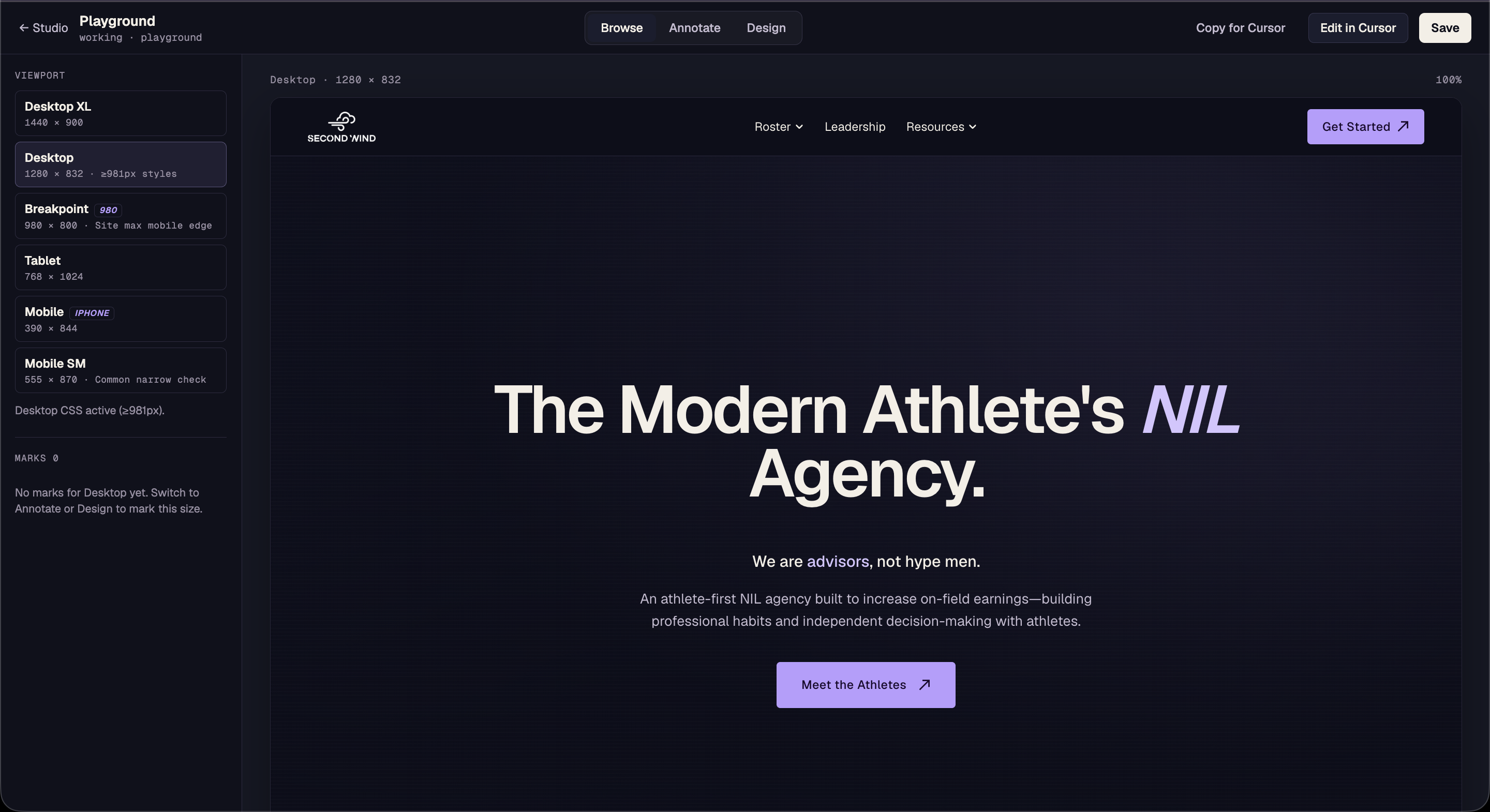
Canvas of SWP Sandbox (Click to enlarge)
Opening a draft, picking a viewport, leaving a mark
Opening a draft on the canvas and making a change at desktop and mobile
SWP Sandbox is local and in active use for Second Wind Pro work. It came out of the same instinct as the rest of that redesign: when something about the process is genuinely broken, build the thing that fixes it rather than working around it.